How to Complete a Recording
Purpose
This guide helps you understand how to start and end a screen recording session.
Five-step Process
Step 1
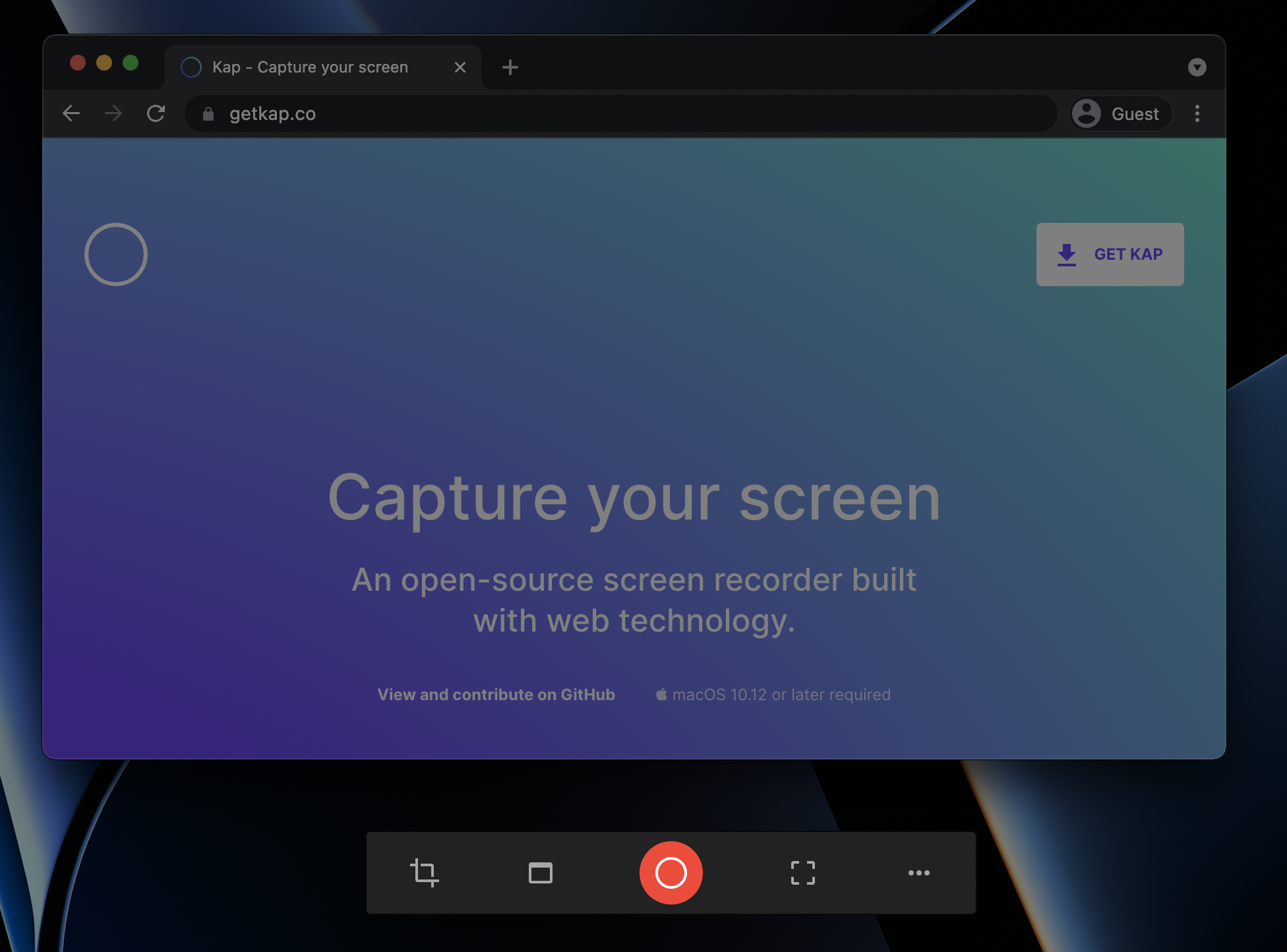
Open the Kap application. The screen will darken, and the toolbar will display.
Step 2
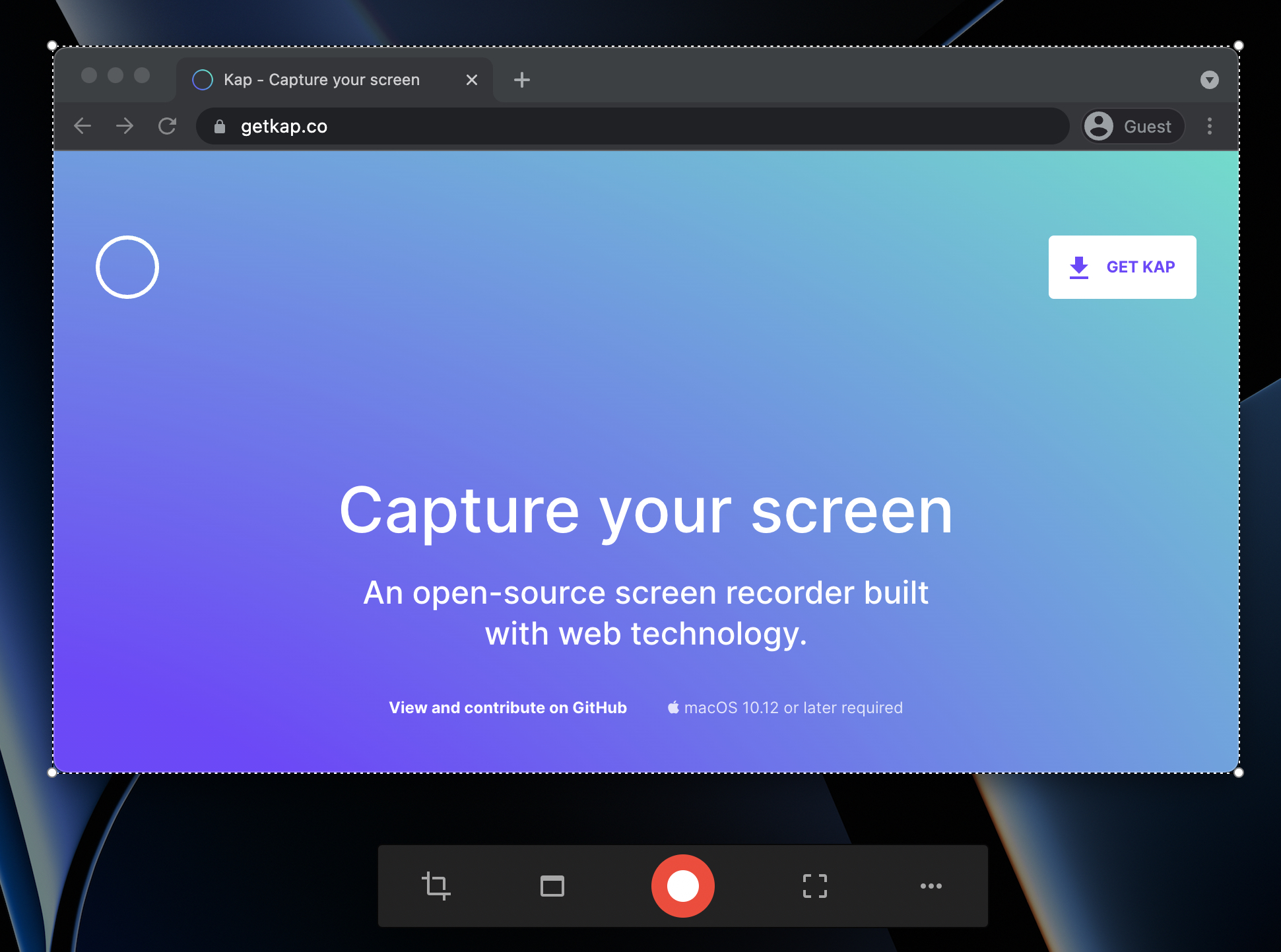
Define the recording area in one of three ways. For more details on these methods, refer to the toolbar guide.
- Cropped capture
- Application window capture
- Full-screen capture
Step 3
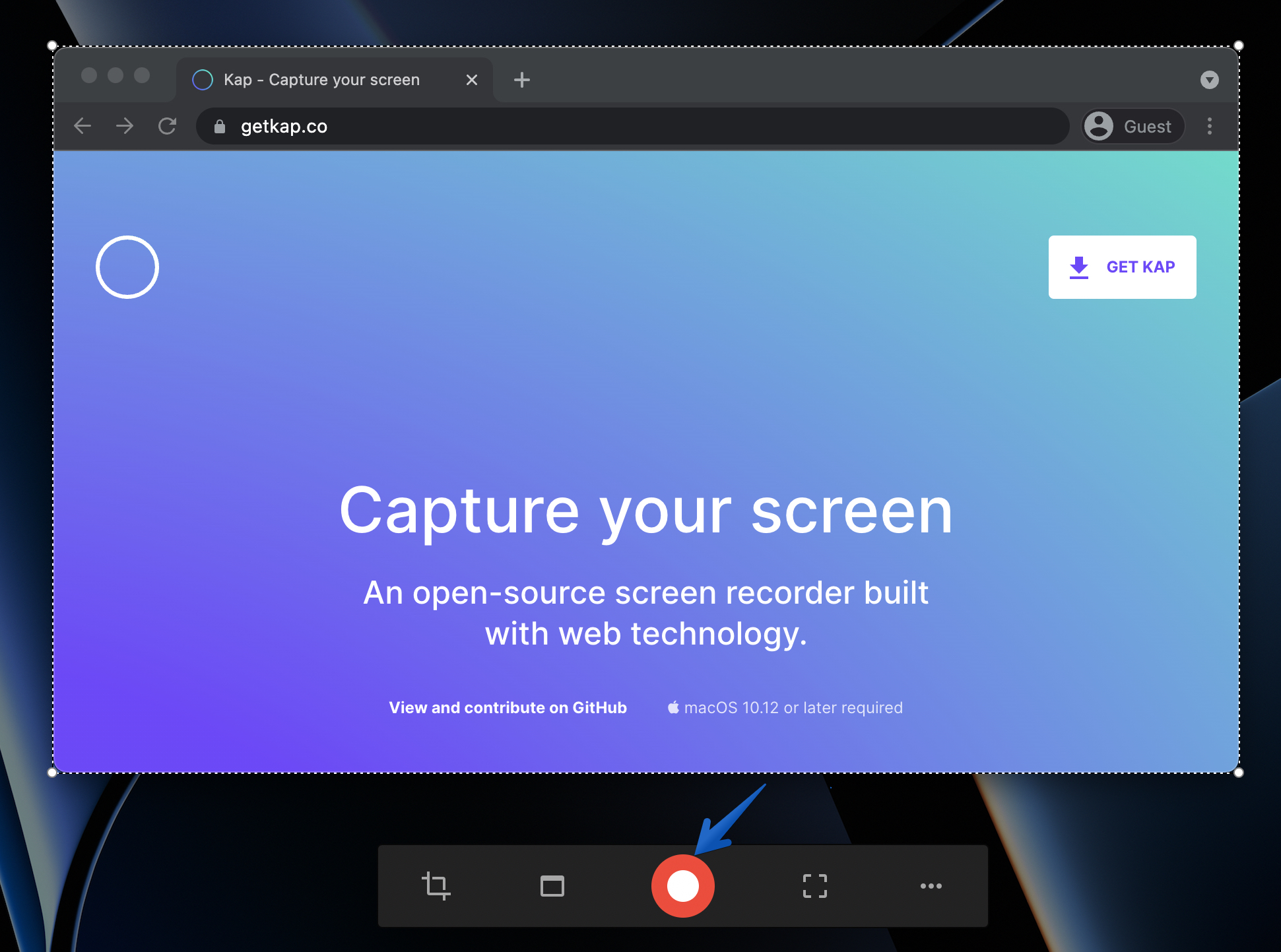
Click the record button to begin recording.
Step 4
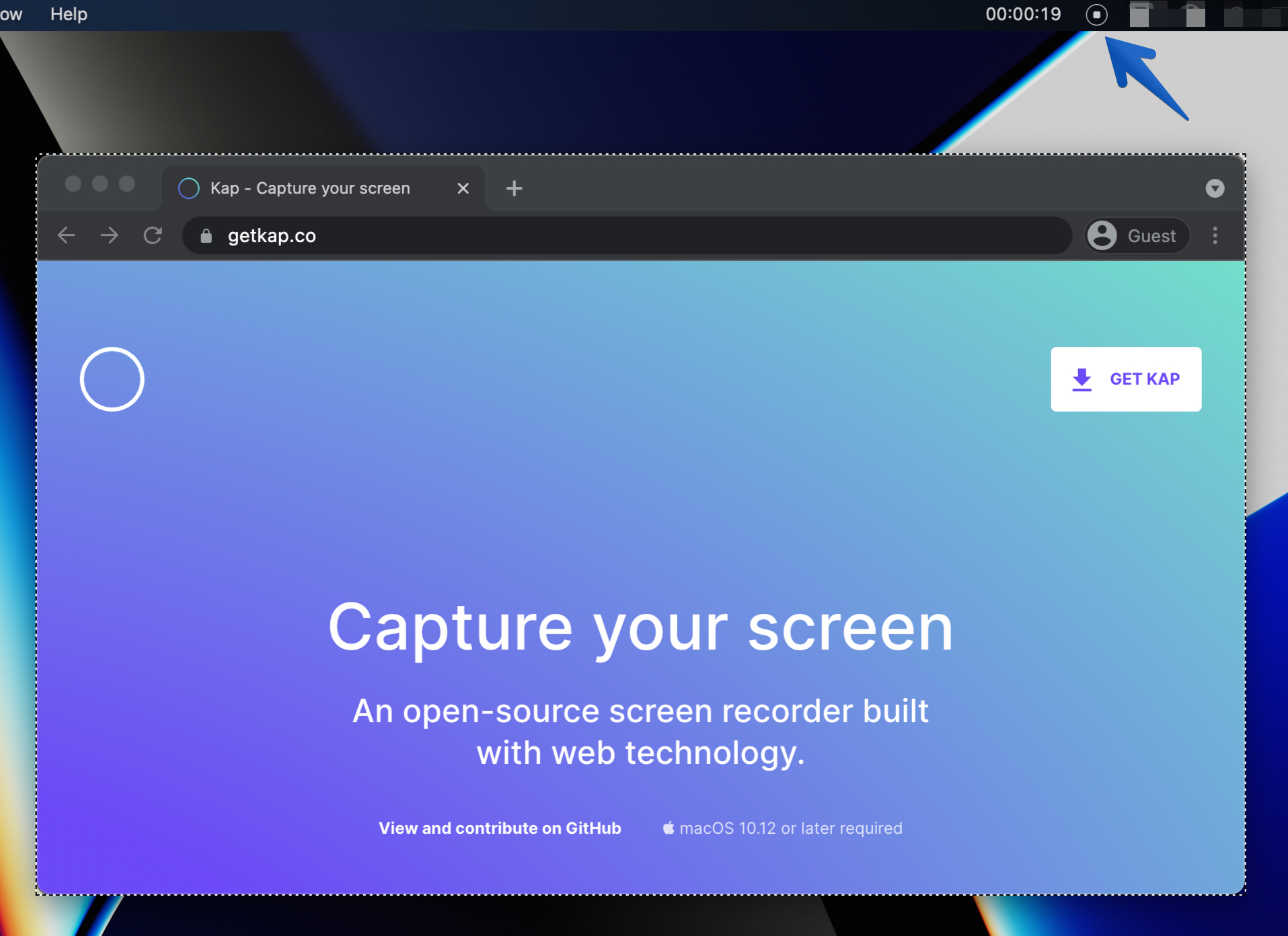
Click the stop button in the menu bar to end the session.
Step 5
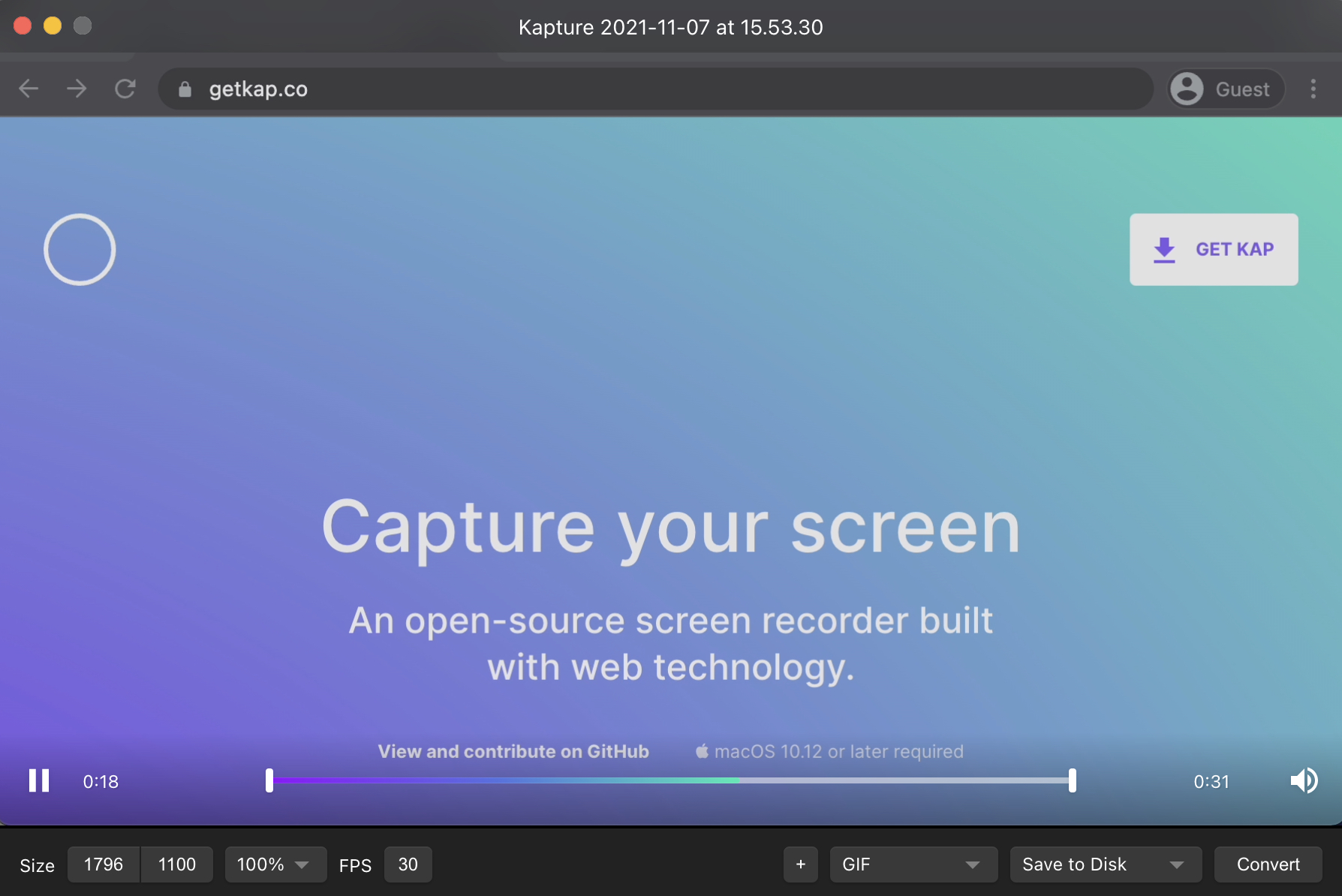
After the recording ends, an editor window will display. For more details on the editor’s options, refer to the editor guide.