Editor
Purpose
This guide highlights the available options in the Kap editor. The default options are described below; other alternatives may appear when you enable specific plugins. We’ll also review the export menu.
Introduction to Editor Options
- A: Size width
- B: Size height
- C: Size percentage
- D: Frames per second
- E: File format selector
- F: Export location selector
- G: Conversion

Options Overview
Size Width and Height
Customize the size of the exported recording by inputting a numerical value.
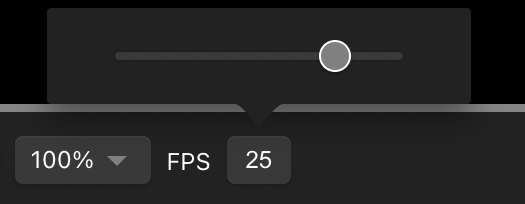
Size Percentage
Customize the size by a percentage value. Available options are:
- Original (100%)
- 75%
- 50%
- 33%
- 25%
- 20%
- 10%
Frames per second
Control the exported recording’s frames per second. The lowest value is five, and the highest is 30. Input a number or slide the selector to adjust.
File Format Selector
Select the format for the exported file. Available options are:
- GIF
- MP4 (H264)
- WebM
- MP4 (H265)
- MP4 (AV1)
- APNG
Export Location Selector
Select the destination for the exported file. Options may change depending on enabled plugins. Default options are:
- Save to disk: Save the file to a folder on the system.
- Copy to clipboard: Copy the file to the clipboard to paste in the desired location.
- Open with: List available system applications to open the file.
- Get plugins: Directs to the plugin options within the app’s preferences.
Conversion
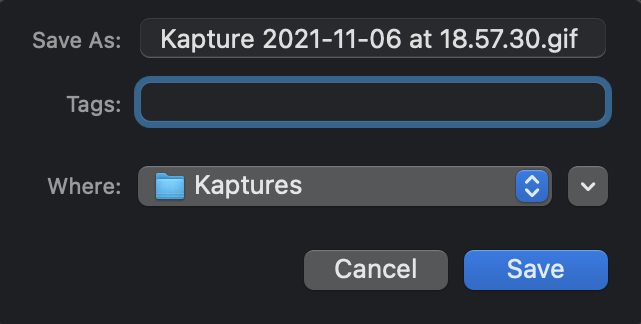
Save recordings as exported files after setting all desired parameters. Customize each file’s name, tags, and destination.
Export Menu
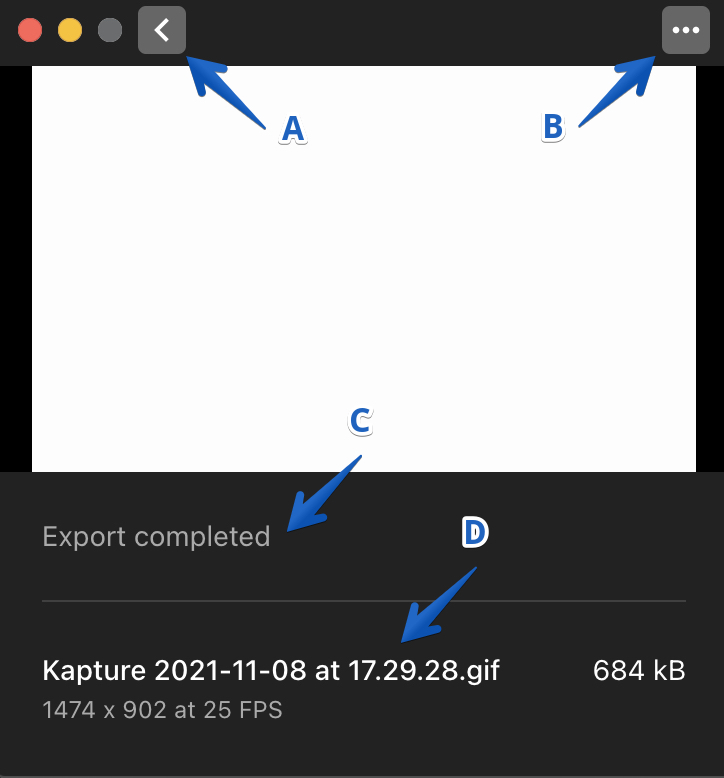
- A – Back button: Takes you back to the editor.
- B – Ellipsis: Contains options to copy the exported file to the clipboard or view it in the Finder.
- C – Export status: Displays the status of the exported file with a timestamp for completion.
- D –Export history: Displays completed exports within the current session